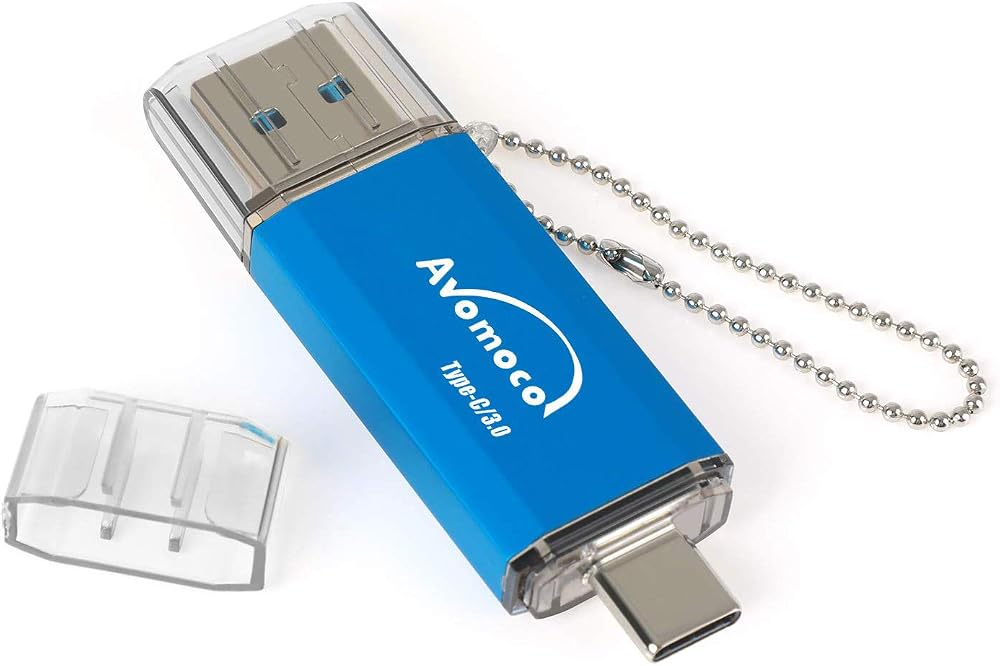
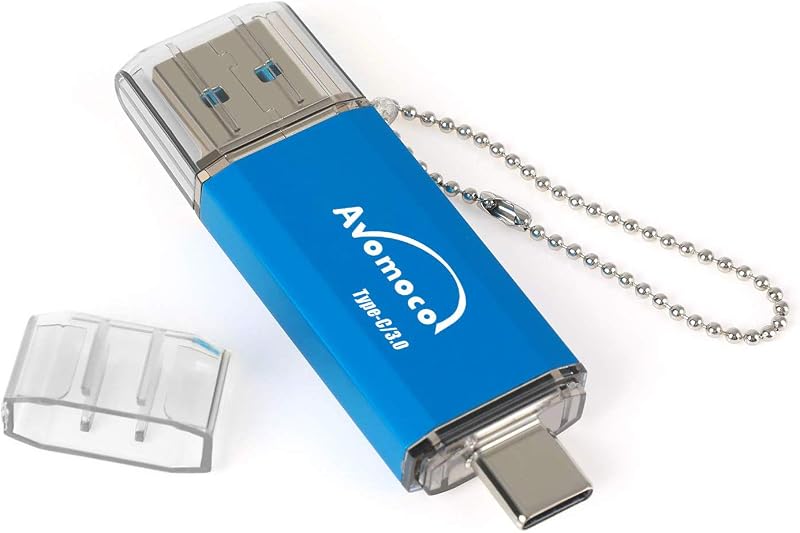
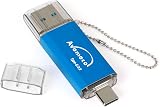
AVOMOCO 256GB USB C Dual Flash Drive Type C OTG for Samsung Galaxy Pixel LG

3 interest-free payments of £16.56 · subject to eligibility
Next-day deliveryFREE
Order by 2pm for same-day dispatch
Standard UK DeliveryFREE — get it by Sun 1 Nov – Wed 4 Nov
Sold by Bubble Booth ✓ (1)


 +
+



Delivery
Details
About this item
Product Information
Expand your mobile storage with the AVOMOCO 256GB USB 3.0/3.1 Type C Dual High-Speed Flash Drive. Designed for seamless integration with USB-C devices, this drive is perfect for quickly transferring photos, videos, and other files from your phone or tablet.
Key Features
- Capacity: 256GB
- Connectivity: USB 3.0/3.1 Type C Dual Interface
- Compatibility: Works with USB C phones, tablets, and computers.
- Ideal for: Photo storage, file backup, and data transfer for devices like Samsung Galaxy S10/S10+/S8/S8+/S9/S9+, Note7/8/9, A6S/A9S, Google Pixel, LG, and Huawei.
- LED Indicator: Flashing LED indicates the phone is recognizing the external USB drive.
How to Connect and Transfer
Important Note: Please remove your phone's protective case before inserting the USB flash drive for optimal connection.
Way 1: Using Notification Panel
- Connect the USB flash drive to your phone.
- Glide your finger downward on the phone's home screen to display the notifications panel.
- Tap the alert for "General USB Drive", "USB storage", or "OTG".
- Navigate through the existing folders to find your files.
- Select files and choose "copy to" or "move to" your desired folder on the flash drive.
- To eject, glide downward on the home screen, access the "General USB Drive" notification, and select eject or uninstall.
Way 2: Using "My Files" App
- Plug the USB flash drive into your phone. Look for a "USB storage" connected symbol at the top of your screen.
- Open your phone's "My Files" application.
- Locate videos, pictures, or audio files.
- Click "Copy" or "Move" from the menu (usually in the top right corner).
- Navigate to the desired folder on the flash drive and select "Paste Here".
- To eject, glide downward on the home screen, access the "General USB Drive" notification, and select eject or uninstall.
AVOMOCO Quality
AVOMOCO products undergo rigorous testing to ensure outstanding quality, performance, and reliability.
Details
Compare sellers (1)
Every offer is covered by UKyard buyer protection and 30-day returns.
Condition Brand new
Free UK delivery · 3–5 days
Get it by Sun 1 Nov – Wed 4 Nov
Customer reviews
No reviews yet — reviews come only from verified UKyard buyers.
Sign in to review a product you've bought.
You might also like
SanDisk
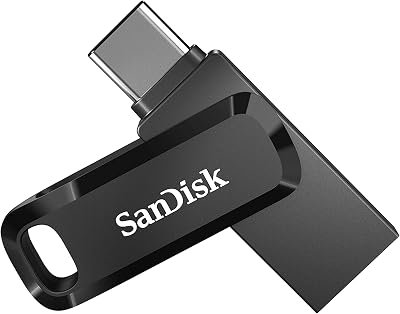
SanDisk Ultra Dual Drive Go 64GB USB-C USB-A 3.2 Gen 1 Black
SanDisk
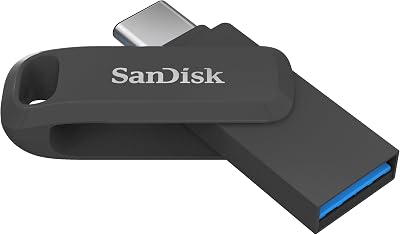
SanDisk Ultra Dual Drive Go 128GB USB Type-C & Type-A Flash Drive 400MB/s
SanDisk
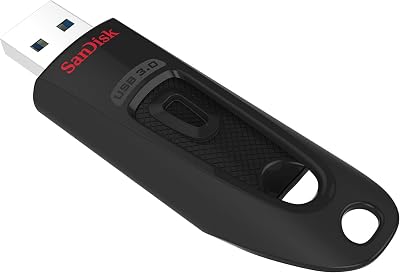
SanDisk Ultra USB 3.0 256GB Flash Drive USB A Memory Stick
SanDisk
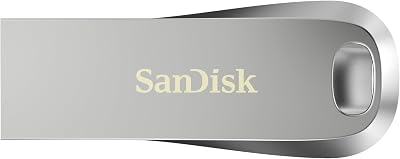
SanDisk Ultra Luxe 128GB USB 3.1 Flash Drive Silver
SanDisk
SanDisk 64GB Ultra USB 3.0 Flash Drive Up to 130 MB/s Read Black
SanDisk
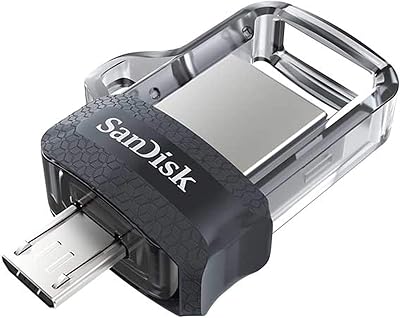
SanDisk Ultra Dual Drive m3.0 USB 3.0 64GB Flash Drive with USB Type-C & Type-A
SanDisk
SanDisk Ultra Dual Drive m3.0 128GB USB 3.0 Micro USB Flash Drive Android OTG
SanDisk
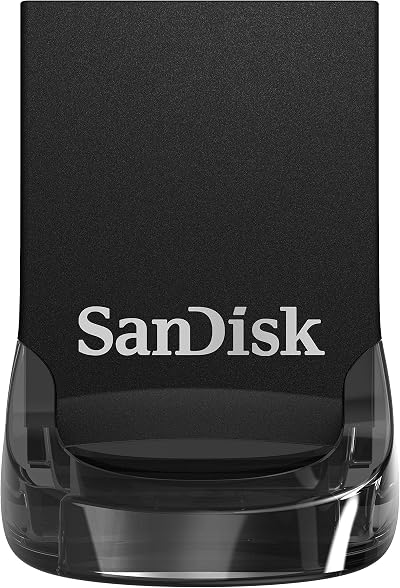
SanDisk Ultra Fit 64GB USB 3.2 Flash Drive Type A Black
AVOMOCO
£49.69